
It can be frustrating to have an older android phone that’s slow, with lag when you’re trying to get things done on your device. For a faster and smoother experience, you can enable GPU rendering to turn on the power of your graphics card.
Computer processing units (CPUs) and graphics processing units (GPUs) perform different operations. The CPU is great at logical operations but not as good at parallel processing. GPUs, on the other hand, are outstanding at parallel processing; they can complete the same tasks faster than CPUs.
As the CPU of an Android device is inundated with multiple tasks, the GPU helps by rendering images. When you play a 3D game or use a 3D app on your phone, the GPU is responsible for showing a 3D image on a 2D screen. If it were the CPU doing this rendering, then your device would slow down because there are so many tasks that need to be performed at the same time.
By enabling Developer Options on your Android device, it will become snappier.
What is a GPU Renderer?
GPU rendering is a technique that uses your graphics cards to render 3D scenes. GPU rendering has several benefits over CPU rendering, one of which is that it’s easier on your graphics card than using your CPU. And because GPUs are optimized for graphical computations and parallel processing, they’re able to render 3D scenes much more quickly than CPUs.
Should you enable GPU rendering?
GPU rendering is the process of using a GPU to perform rendering computations. A GPU can offer a significant increase in speed for real-time rendering, interactive media, and video processing. GPUs are advantageous over CPUs because of their massive parallelism, which allows them to process thousands of threads simultaneously. This ability to perform many tasks simultaneously is referred to as throughput computing.
On Android devices, it is not recommended to use GPU rendering on low- or mid-segment smartphones with not-so-efficient SoCs. This can put stress on the device and make it run slower. However, you can try this if you wish and the process is reversible.
How to enable GPU rendering on Android?
To enable GPU rendering, you’ll need to enable developer settings on your Android device. Tap the following steps to do that.
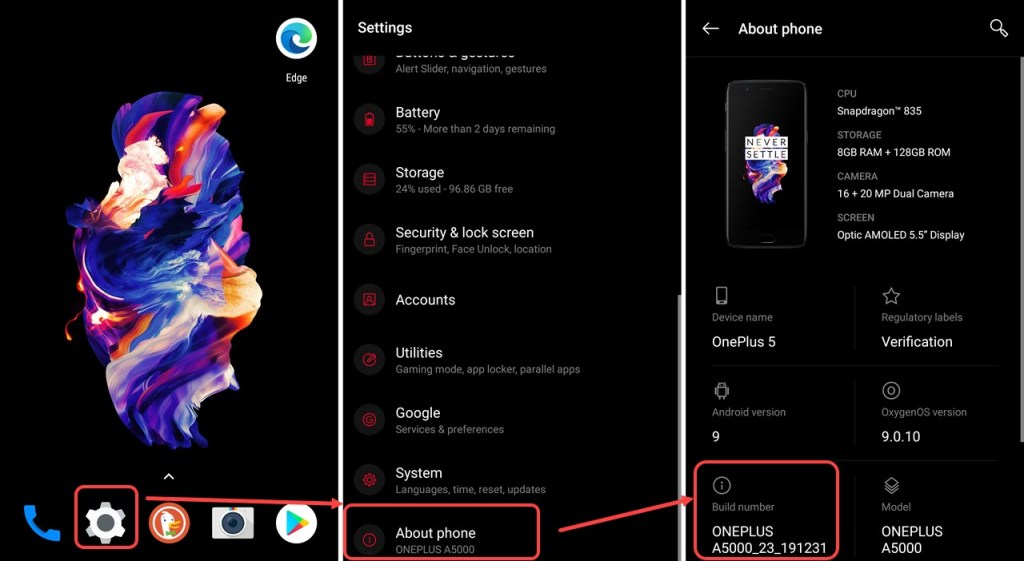
- To enable developer options:Go to Settings > About phone; scroll down and tap Build number seven times. This will enable developer options on your device.
2. To enable the GPU in your device, go to Settings > Developer options and turn on Force GPU rendering and Force 4x MSAA.
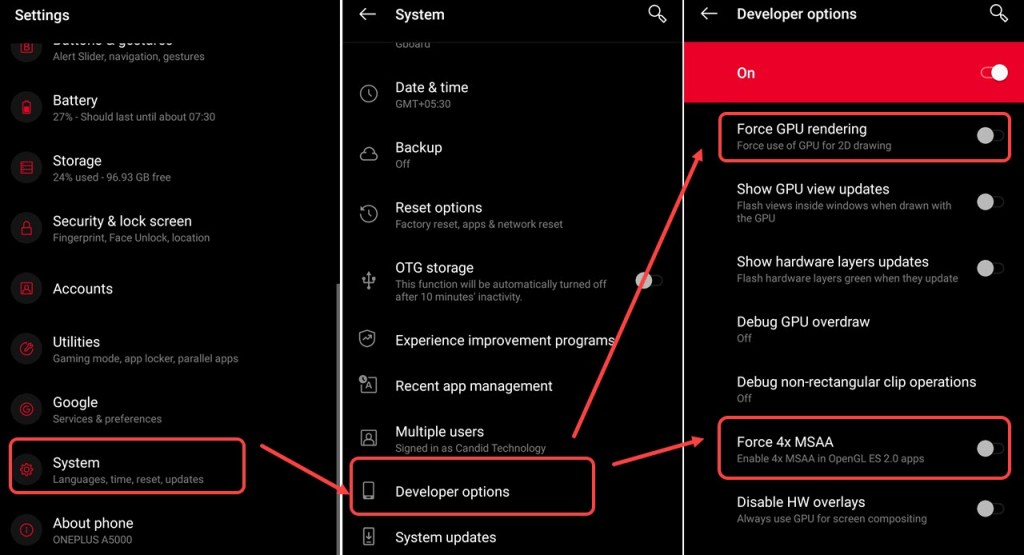
If you enable these two options, your Android experience will be smoother because the graphics processor will take over some of the CPU’s workload by rendering images on-screen. MSAA removes jagged edges from images to make text and images look more crisp.
If your device starts to lag or stutter even though you have switched off the toggle button besides Force 4x MSAA and Force GPU rendering, the problem might be with your device settings.
 Geek Crunch